Types of data clean-up
Usually, data “clean-up” comes in two primary forms:- Cleaning up data mess that accumulates naturally over time
- Deleting problematic data stemming from acute issues (e.g. implementation bugs, bot traffic, PII)
1. Cleaning up data when it naturally gets messy
Even if you start with strong data governance and best practices about how to structure your data, data can get messy over time (e.g. as your product expands or is updated, or as new data governance owners move on). In this section, we will look at tips and tricks on how to clean up messy data when it gets out of hand.Leverage Lexicon for a quick spot check
Blocking events that are not queried
Lexicon is our data dictionary in Mixpanel, and is where project owners and admins can add / manage descriptions for all events and properties to organize your data.- Order by volume descending. Are your users querying events with large volume? If not, you might want to think about blocking these events. Blocking events means that they will no longer be ingested in Mixpanel. This is especially helpful for apps, since you don’t need to release new app versions and wait for users to download the latest versions for the code change to take effect (we still recommend that you clean up the code on the backend though!).
- Sometimes, customers may still want these large volume events because they rely on them downstream (via data pipelines). But if you’re not querying the events in Mixpanel itself, you shouldn’t send it in - if you’re on the events plan, this increases your utilization; also, this clutters up the UI for users who don’t need to see it there. You could hide the event in the UI in Lexicon, but our recommended approach is to not send this data into Mixpanel at all.
- If you’re leveraging our SDKs and want to continue doing so for ease of leveraging our ID management and default properties, an alternative is to route events from Mixpanel’s SDKs via a proxy in your own domain. This way, you get to push the events required for backend analyses directly into your warehouse, and send only the events users query in our UI to Mixpanel
Cleaning up display names and adding descriptions for events
It’s always helpful to add descriptions to your events so users know where they are triggered. If you’re an owner or admin, you can add the descriptions directly on the UI itself. You could also export the data into a CSV, update the description there, then import it back into Lexicon if it’s easier to clean up that way. If you leverage Segment, mParticle, or Avo.app, you can use that to import your event names and descriptions that way too. If you use Figma to identify your events, some customers add their links to the event descriptions as well.Adding tags to events
Using custom events to combine or filter events
Cleaning up user profiles
If you want to clean up old user profile properties that are no longer being used, you can use our Engage API to remove these old user properties. We also provide a ‘people_unset’ method in the Mixpanel-utils Library here.2. Deleting problematic data
Data Deletion allows you to delete noisy or sensitive data from your Mixpanel project, helping you maintain the integrity of your analytics project, and preserve a clear view of user behavior. You might find this useful if you:- accidentally send Personal Identifiable Information (PII) in a property
- have implementation issues leading to duplicated data
- experience bot traffic issues that clutter an important event
Is data deletion right for my problem?
Data Deletion is a severe action with permanent consequences. Thus, we recommend it only in a few scenarios:Who can use Data Deletion?
You can use the Data Deletion tool in these scenarios:- Your Mixpanel role is Owner or Admin
- Your data does not extend beyond the past 180 days (event time, not ingestion time)
- Your event volumes are below 5 billion events per month, any month over the trailing 3 months
- Your project has not had more than 10 deletes over the past calendar month
How to use
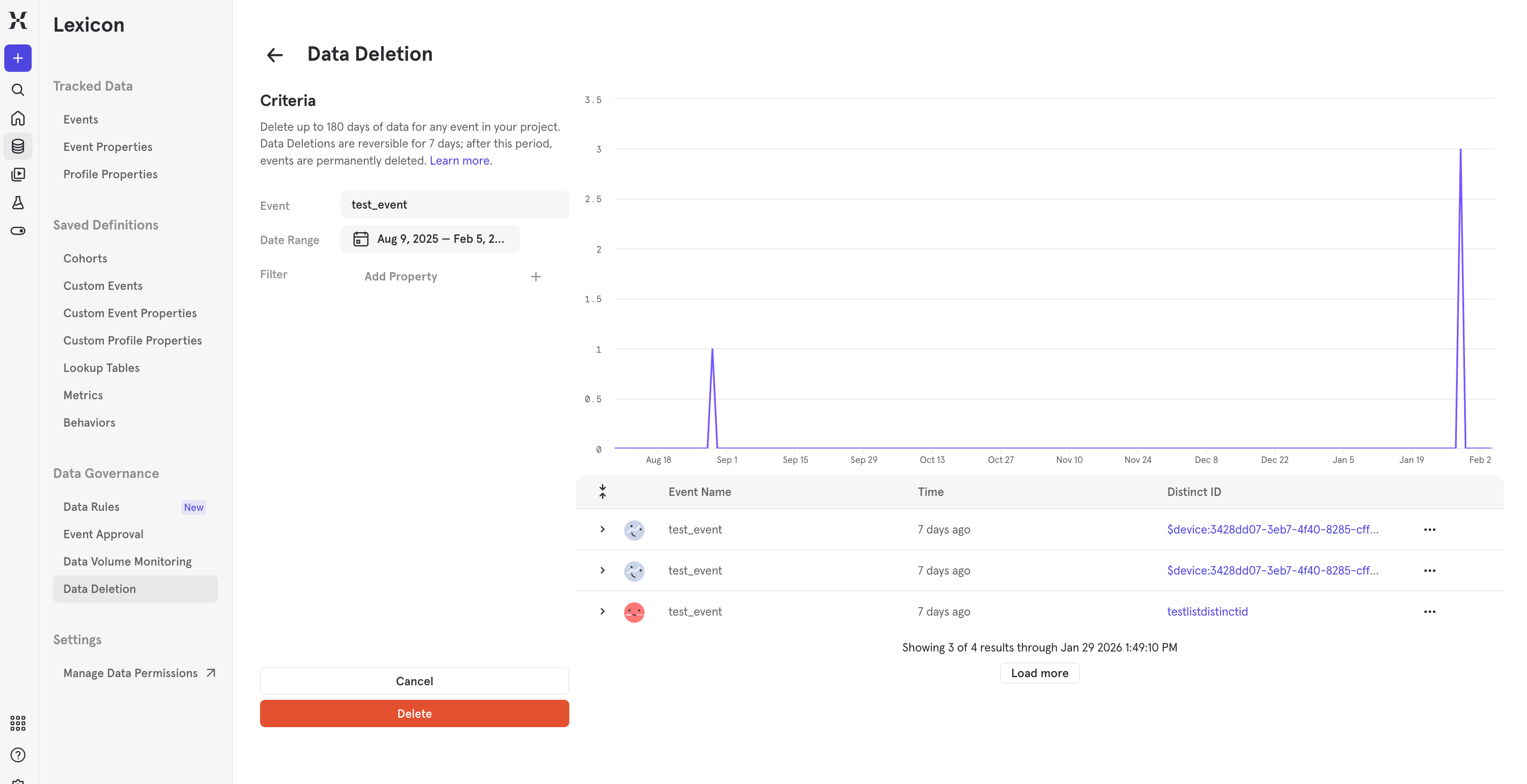
- Navigate to the Lexicon > Data Governance > Data Deletion
- Click ‘Request an Event Deletion’
- Select which event you want to delete
- Select time range (event time cannot be more than 180 days in the past)
- Add any Event property filters if needed
- Validate in the preview that the right data is being deleted
- Submit deletion request
Undoing data deletion
You may undo Data Deletion requests for only 7 days after submitting, after which deletions become permanent. To do so, take the following steps: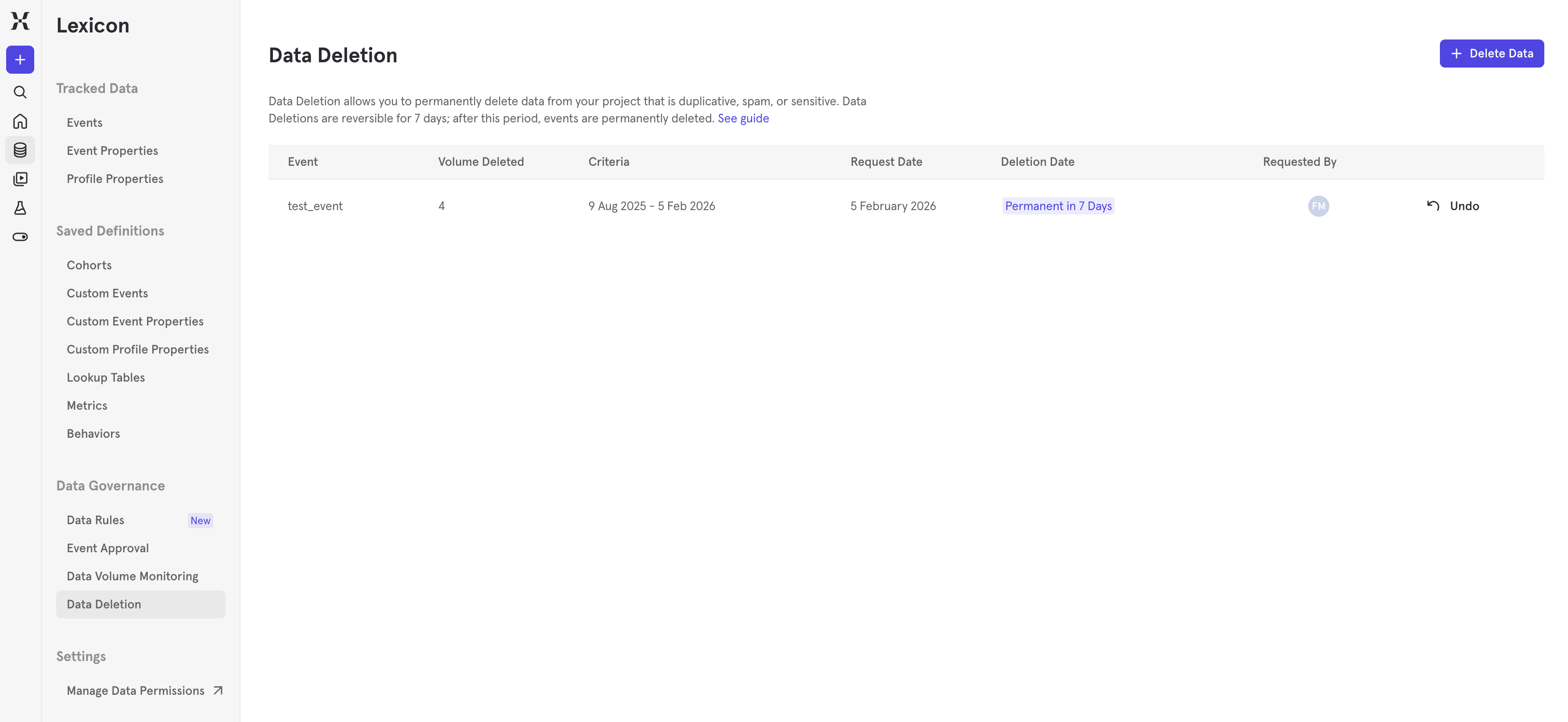
- Navigate to the Lexicon > Data Governance > Data Deletion
- Locate the Deletion request you wish to undo in the table
- Click ‘Undo’ button in the Deletion Data column
Reminders with ETL approach
- For projects created prior to 1 Jan 2023 offset your timestamps
- If your project was created prior to 1 Jan 2023, you cannot just clean the data you don’t want and re-import it. Your data is stored in project time, so you need to adjust the offset before importing
- Don’t forget to regenerate $insert_id’s when you ETL
- When you submit a deletion request, we hide your data immediately from your project to reduce any privacy concerns. We call this “soft deletion”, an interim phase before our “hard deletion” kicks in (where your data is permanently deleted from our servers) so that you can review the impact of your changes and undo when necessary. If you re-import data while the data is soft deleted with the same $insert_id, our deduplication systems may keep the old (deleted) event and toss the new event. Since this data is soft-deleted, your re-import won’t reflect the data as imported. Thus, when the ETL is done, you should regenerate the $insert_id value if possible, to avoid this possible collision
Frequently asked questions
How does Data Deletion impact billing? Billing behavior for successfully deleted events depends on your plan:- Legacy event timestamp billing — Deleted events are excluded from the current month’s usage calculation.
- Ingestion timestamp billing — Deleted events are still counted toward your usage for the month.
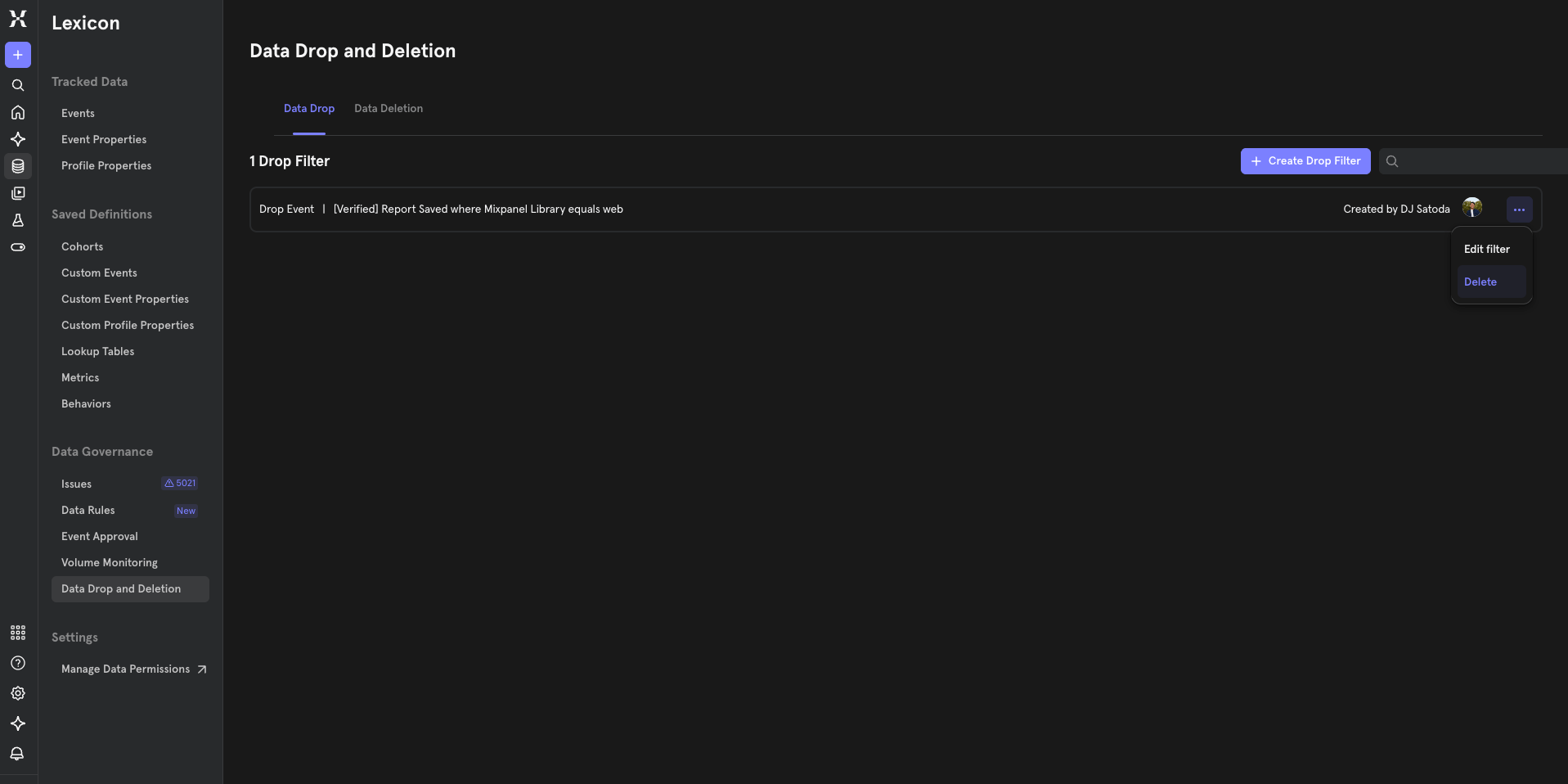
3. Drop Filters
Drop Filters let you stop unwanted events from being ingested and stored into Mixpanel going forward. Where Data Deletion addresses past problematic data, Drop Filters address it proactively — events matching your filter rules are dropped at ingestion and never stored, never queried, and never counted. You might find this useful if you:- Have unwanted events (e.g. test or staging events) leaking into your production project
- Are dealing with noisy events that clutter your project without adding analytical value
- Want to stop ingesting high-volume events that aren’t being queried
Drop Filters only affect events going forward. To remove data already in your project, use Data Deletion.
Who can use Drop Filters?
- Only Owners have permission to create drop filters and drop data.
Supported filter criteria
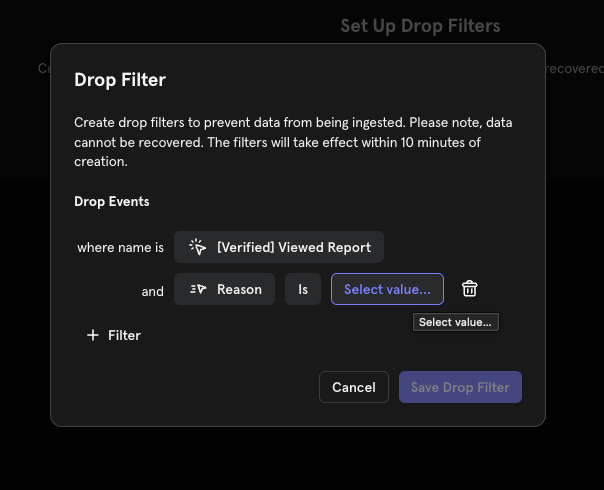
A Drop Filter targets a specific event, narrowed by one or more property values. Every filter must include:- Event name — the event you want to filter (required)
- Event property — at least one property on that event to filter by (required)
- Property values — one or more values for that property (required)
How to use
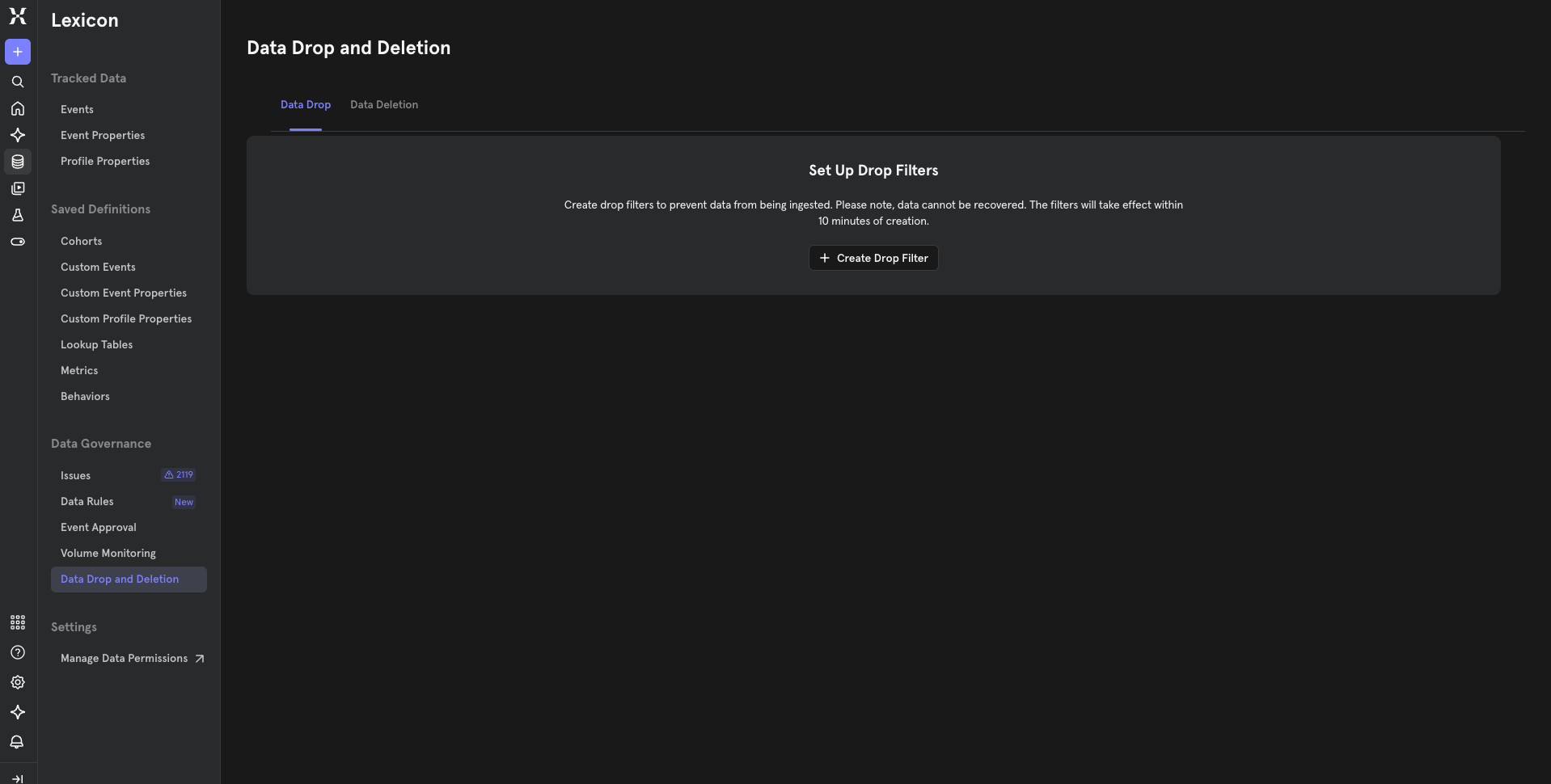
- Navigate to Lexicon > Data Governance > Data Drop And Deletion
- Click Create Drop Filter
- Select the event you want to drop
- Add property + value conditions to narrow the filter
- Save the filter
Editing or removing a Drop Filter
To stop dropping events, locate the filter in Lexicon > Data Governance > Data Drop And Deletion and delete it. Events sent after that point will be ingested normally.